
3 Delightfully Juicy Projects in Affinity Designer for iPad
The Berry Good Affinity Designer Series
Learn the tools, build your skills, and design with confidence.
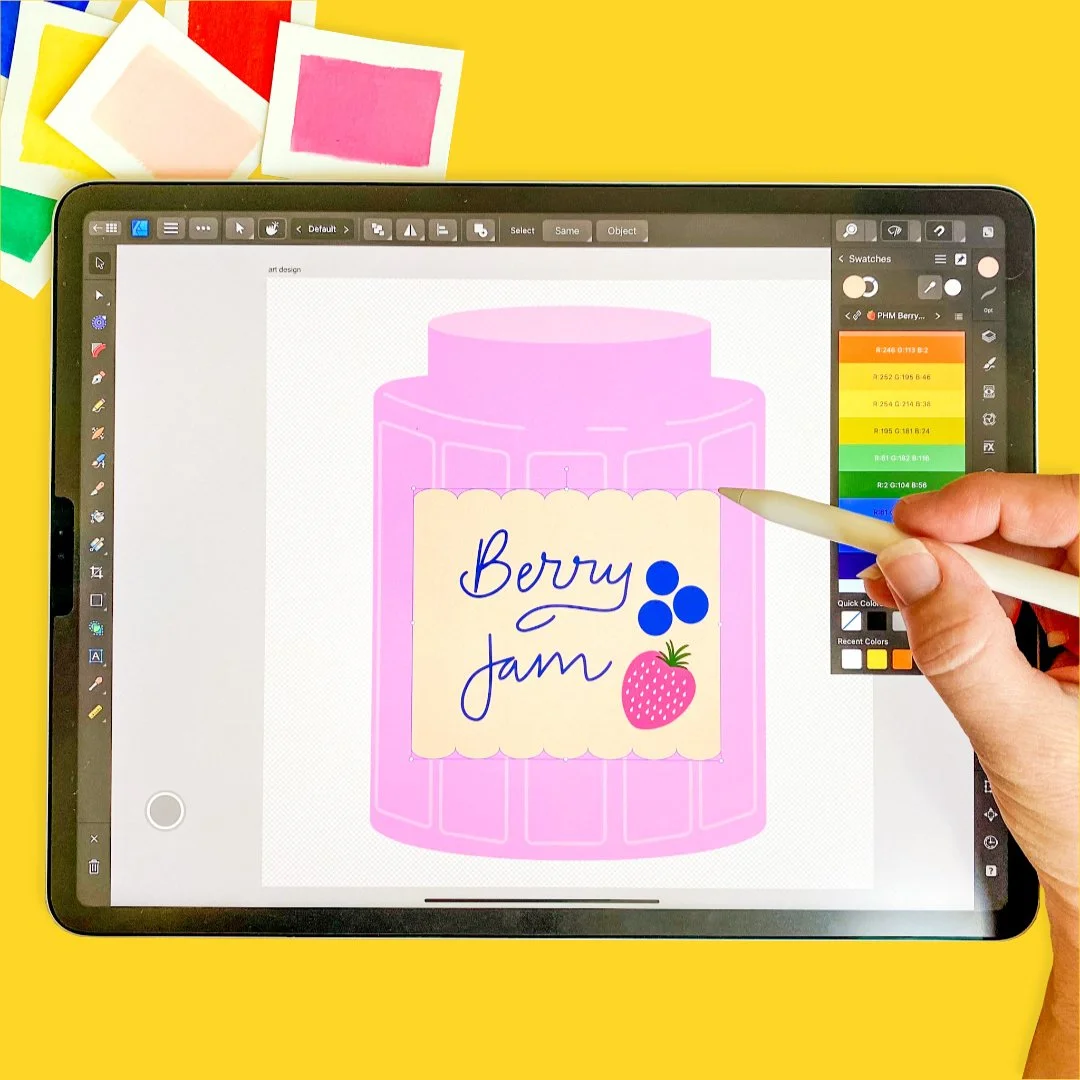
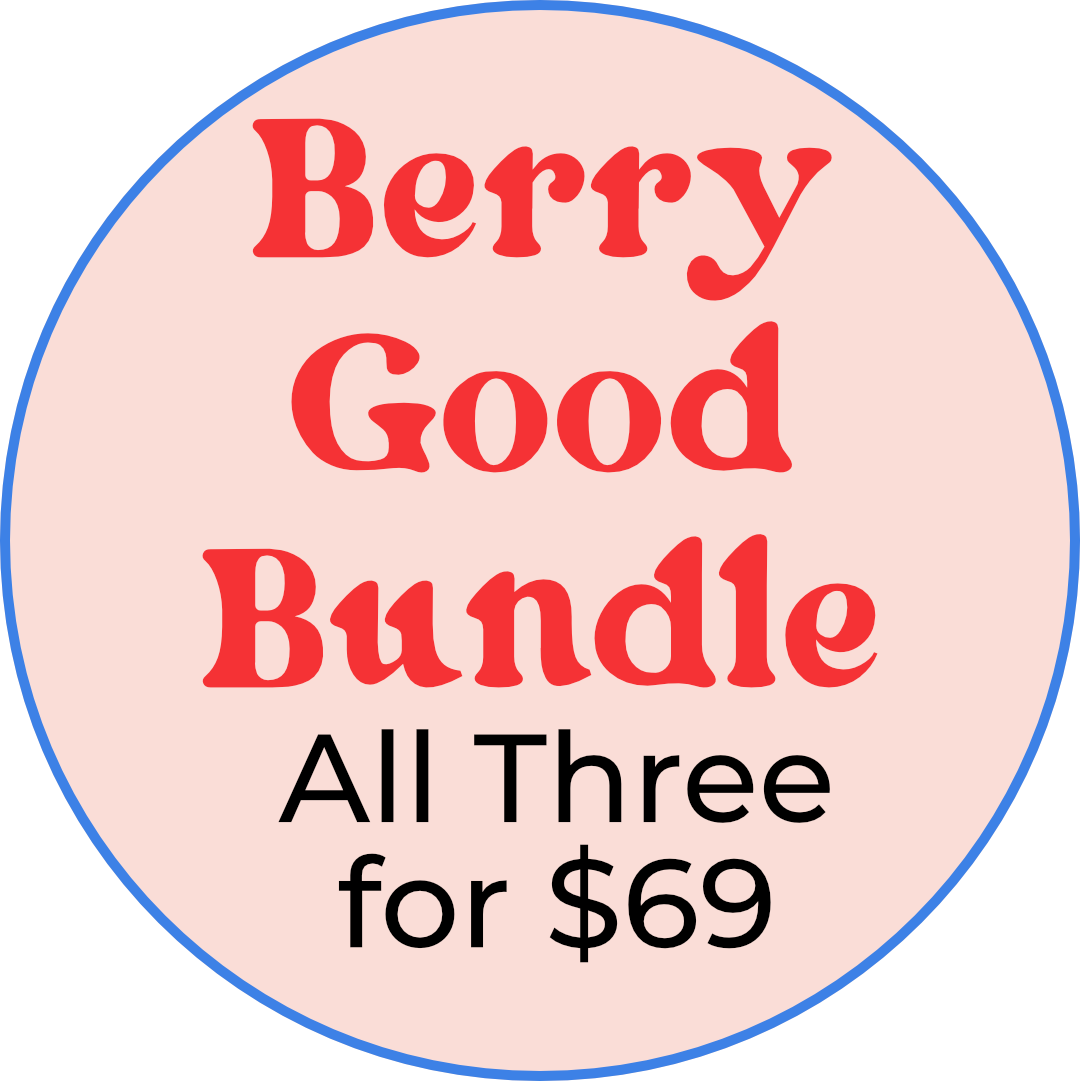
SpecialBundle Pricing: Get all 3 classes for $69 (normally $87!) Snag the bundle today.
Get the full series—three in-depth classes, one launch-only price.
{Start today. Watch anytime. Keep forever.}Every class includes a project prompt, a styled PDF guide, and a ready-to-go Affinity kit.

“True story: I couldn’t stand Affinity at first. So I built the class I wish I had back then.”
Katie—designer & teacher
What's Included with Each Class
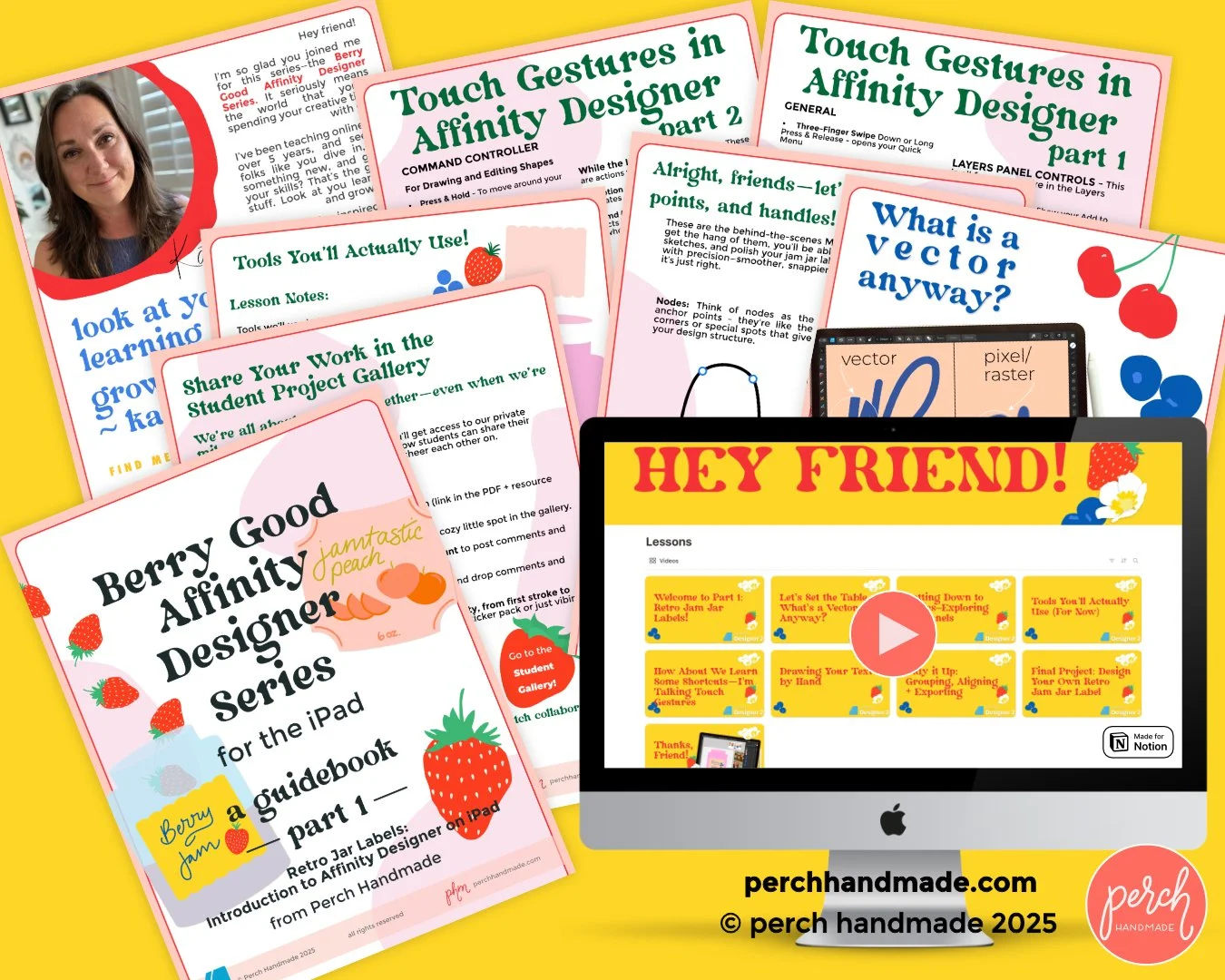
Part 1 –
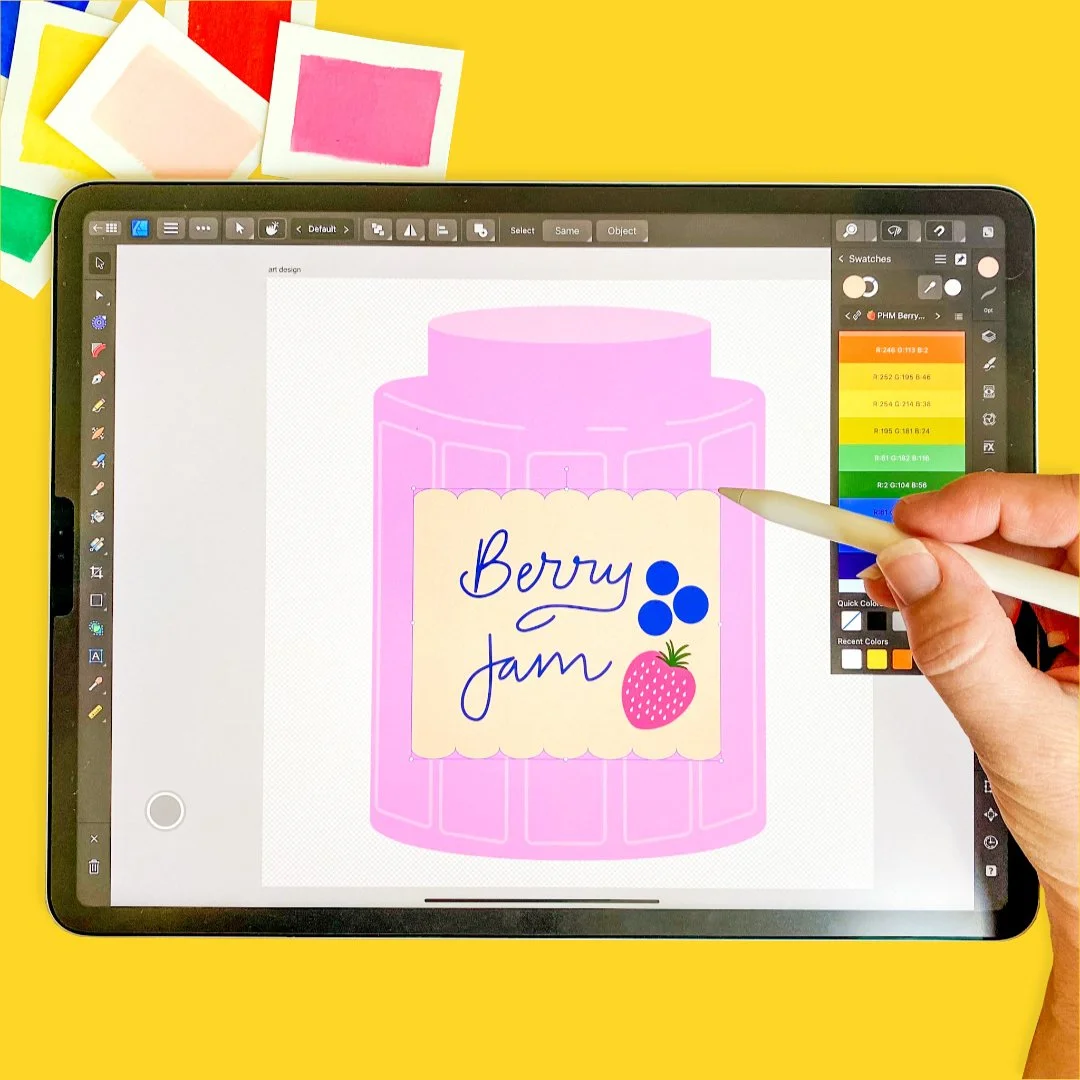
Retro Jam
Jar Labels
Learn the basics of Affinity Designer with shape tools, color palettes, and beginner vector tips.
You’ll get:
A printable PDF guide + step-by-step workbook
Preloaded Affinity Designer color palette
Sketch + layout guides for your label design
Two Touch gesture reference sheets
Private gallery access to share and view student work
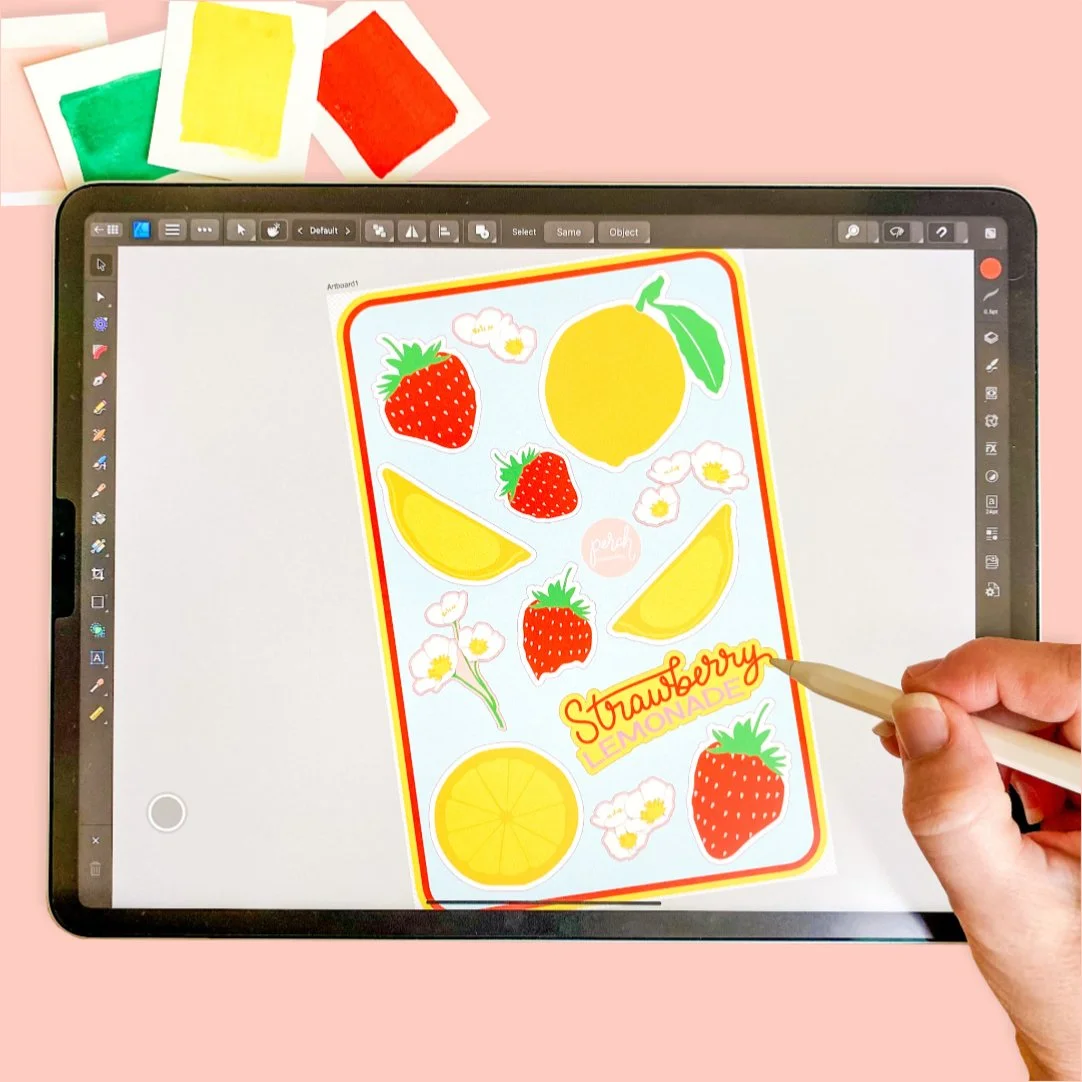
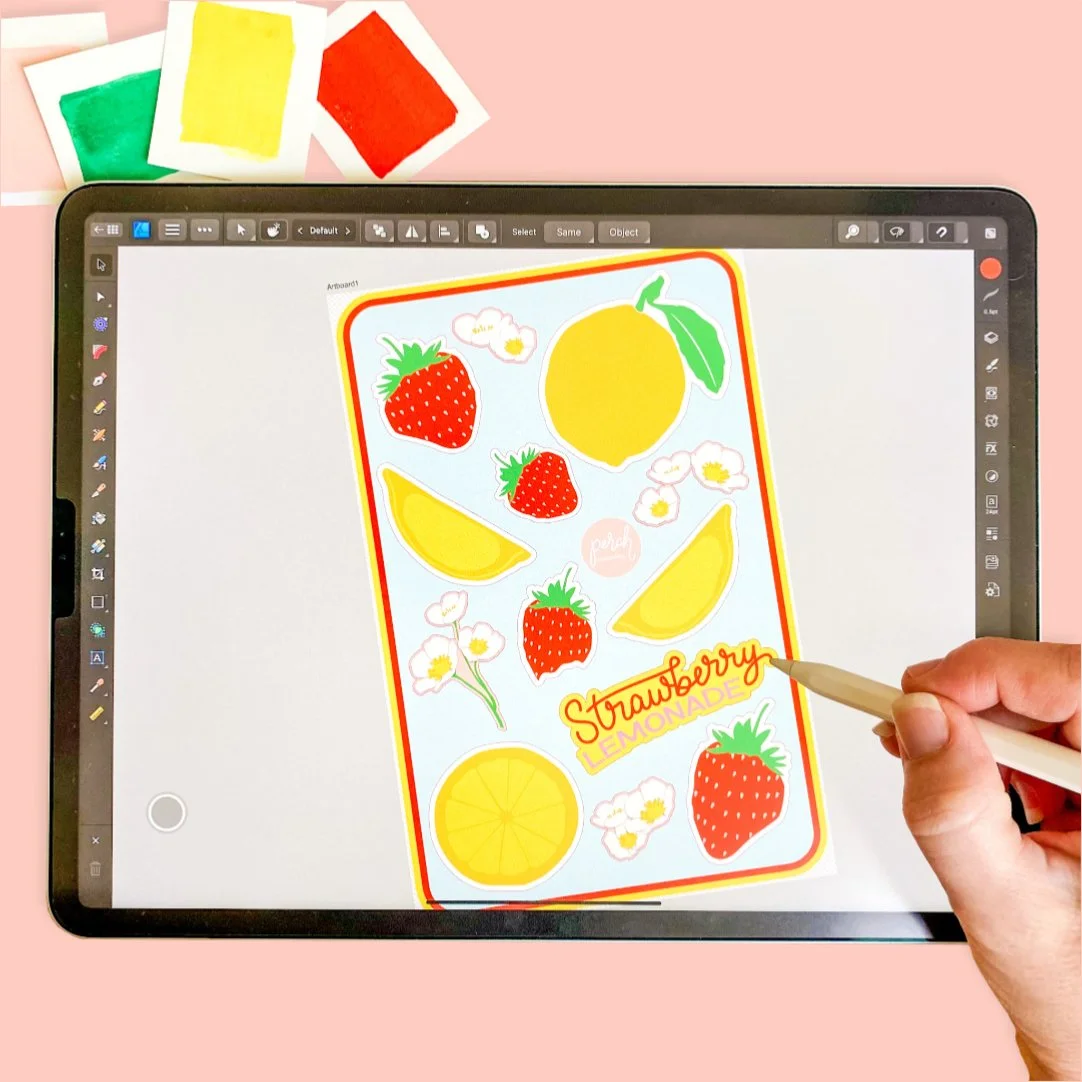
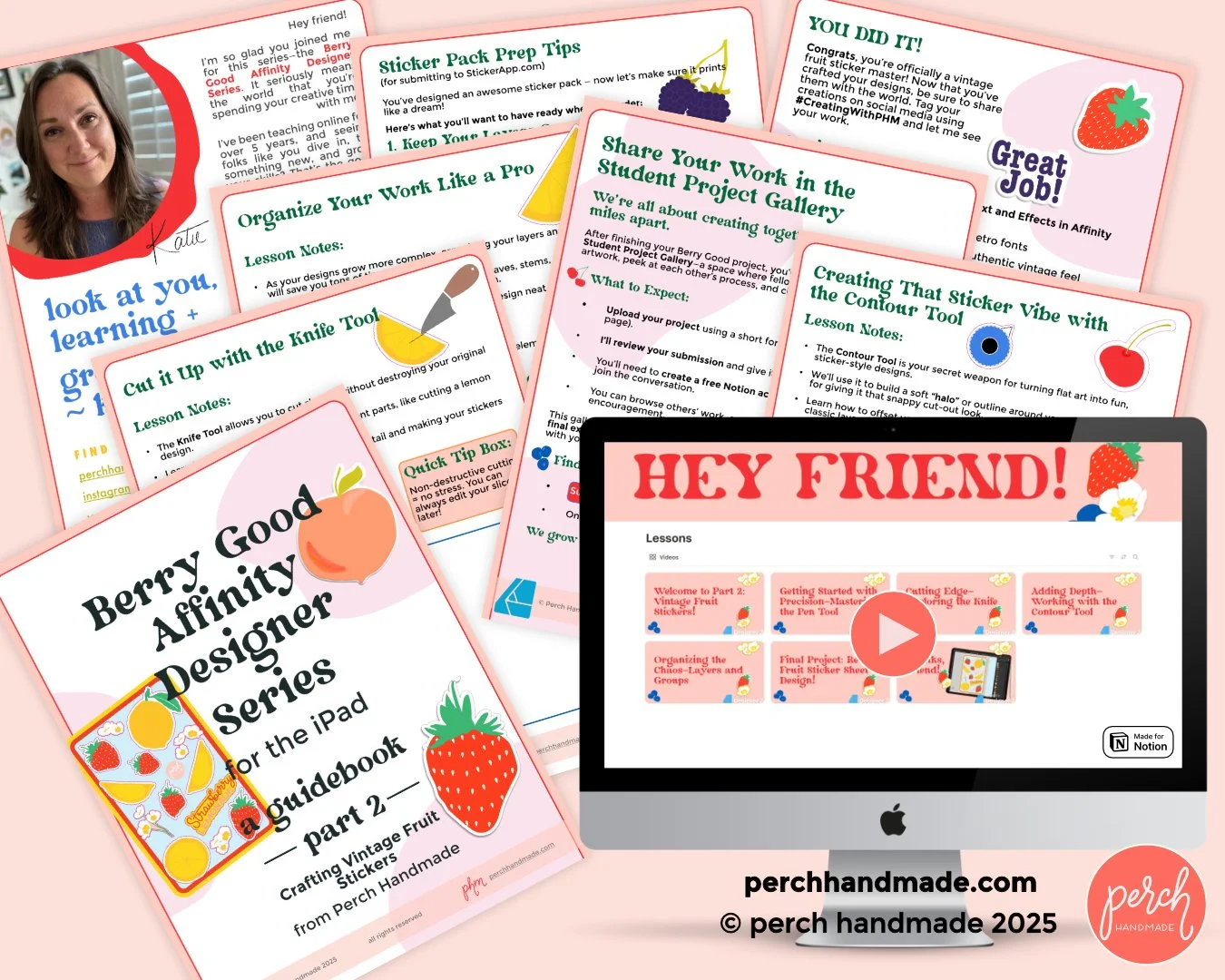
Part 2 – Vintage Fruit Stickers
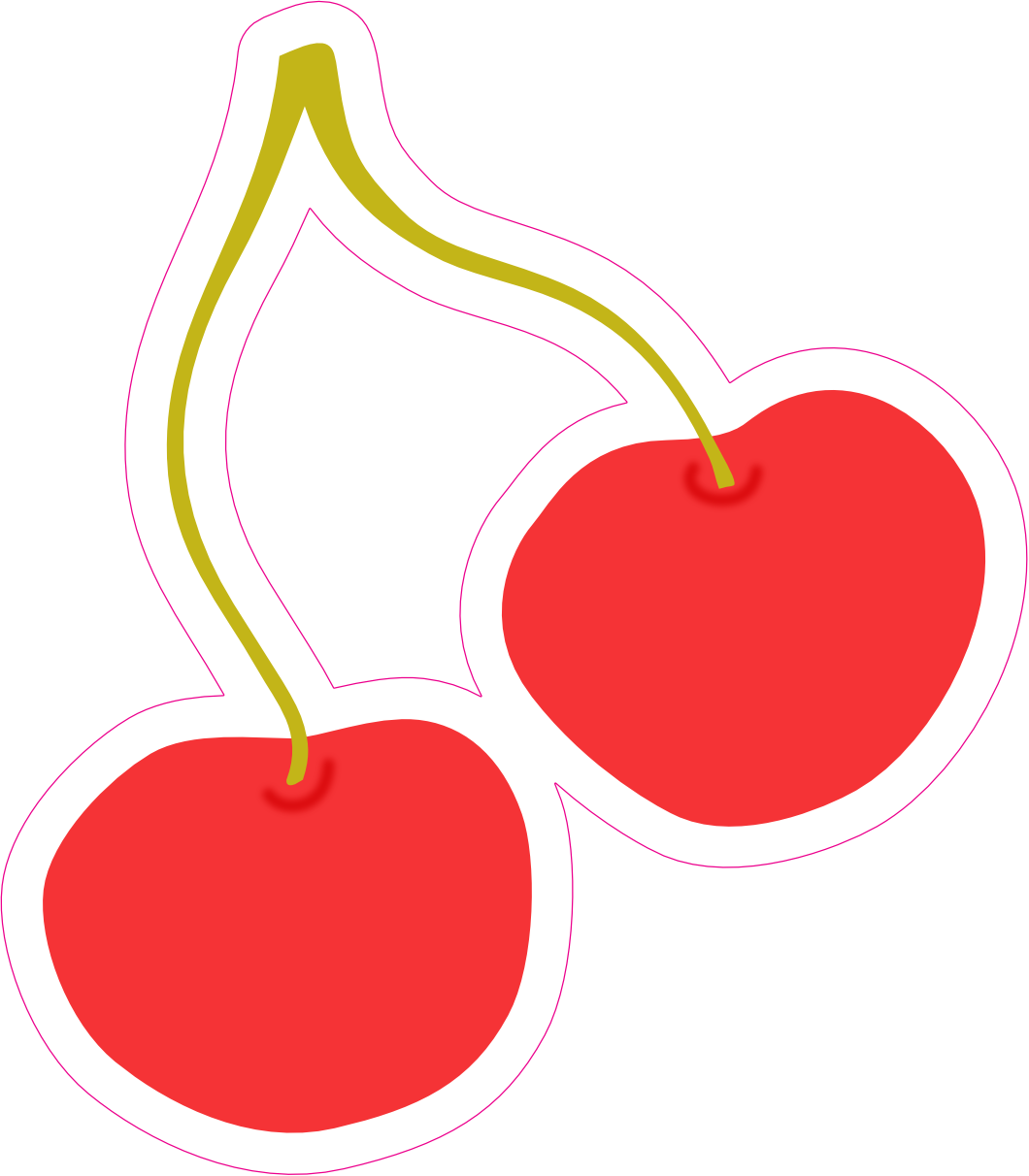
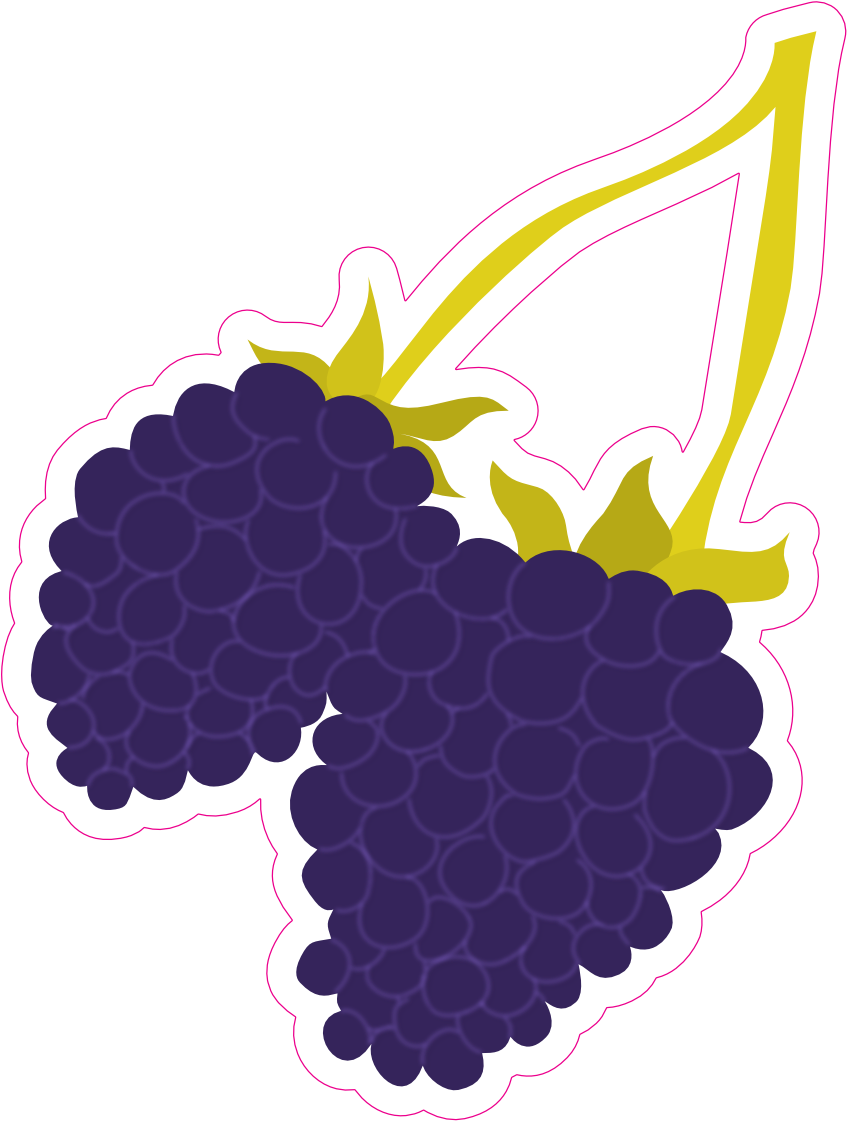
Master Pen and Knife Tools while building your own fruit sticker collection.
You’ll get:
A PDF walkthrough + printable sketch template
Inspiration + composition tips
Tips for getting your pack printed
Student Gallery access
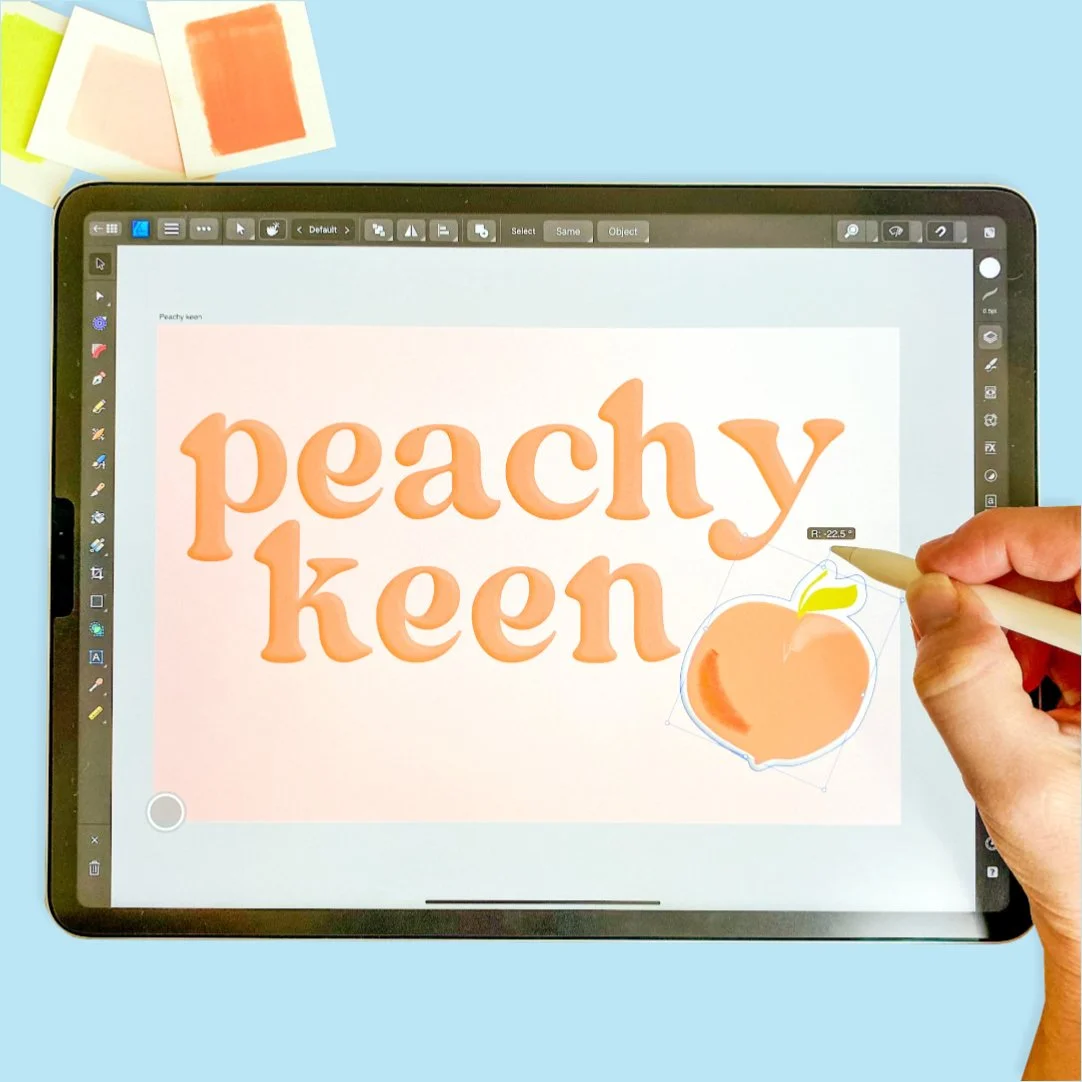
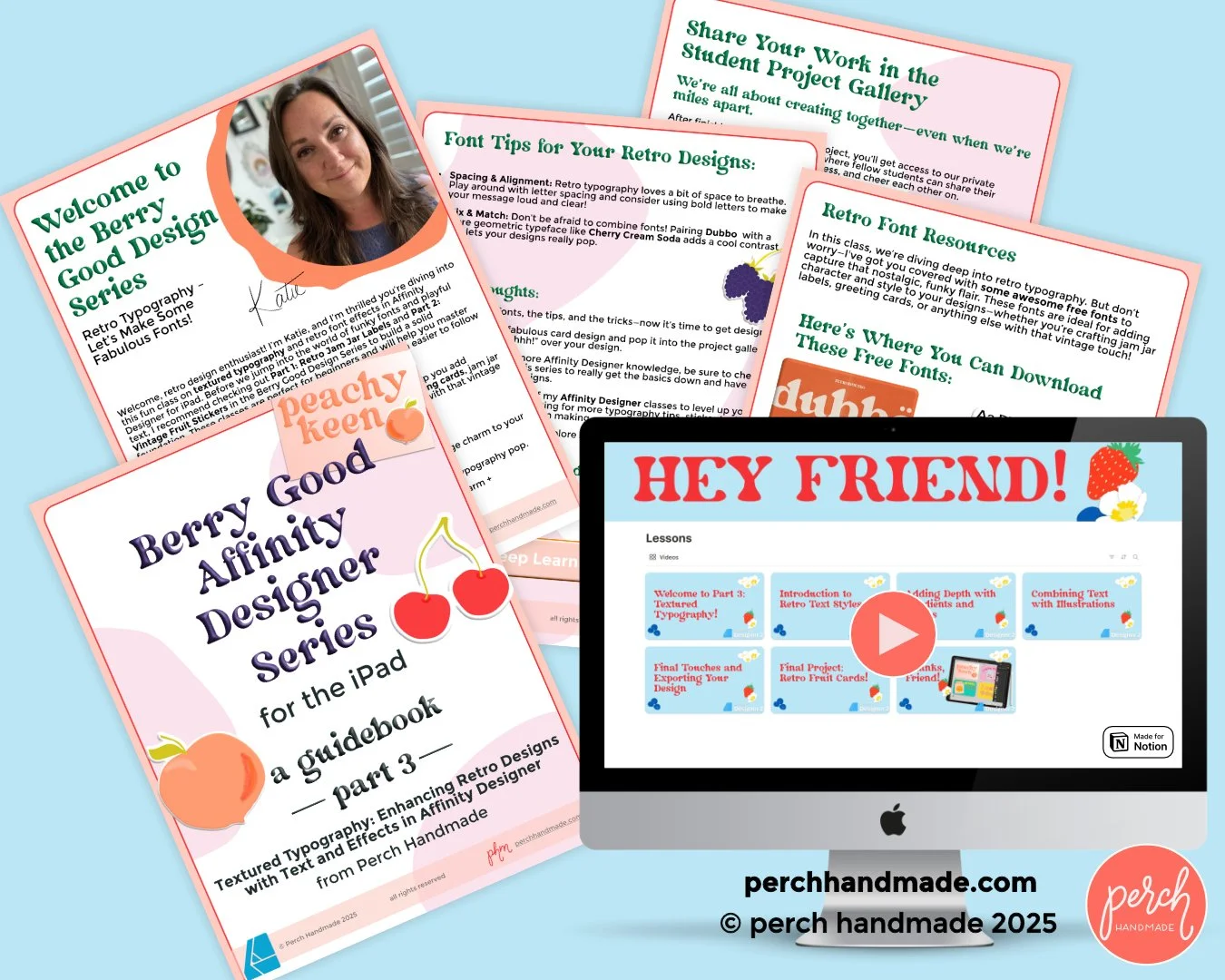
Part 3 –
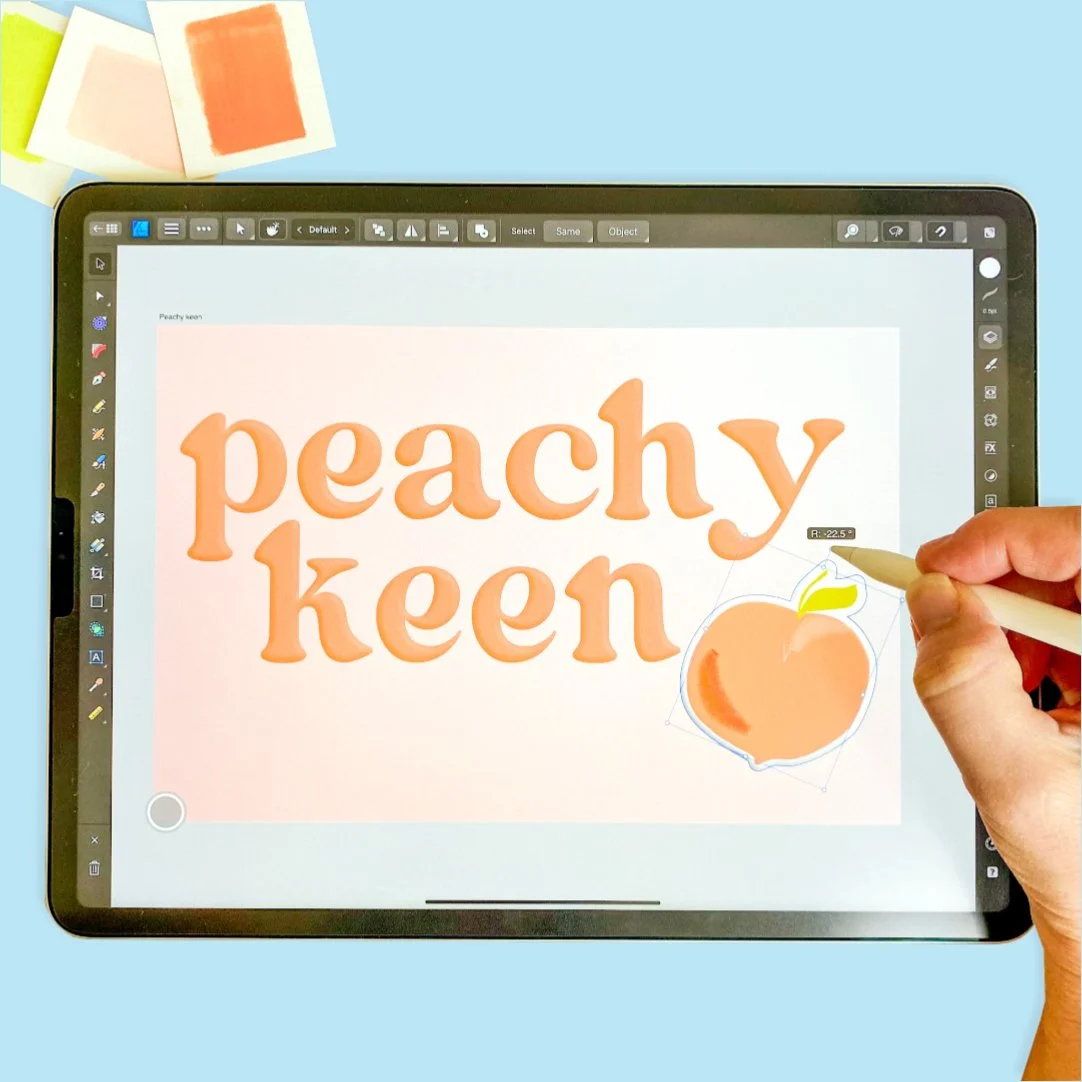
Textured Typography
Finish with text, gradients, and texture to create a greeting card full of retro sass.
You’ll get:
Printable project workbook + design prompts
Free Fonts to use in your design (with a commercial-free license)
Tips for layout + styling your final retro card
Gallery access for feedback + connection
What You’ll Learn Inside the Series
You’ll learn real skills that help you design confidently, creatively, and with intention—all in Affinity Designer on iPad.
Jam Jar Labels: Intro to Affinity
Understand vectors and how they behave
Use Shape Tools, Pencil Tool, and Layers like a pro
Build a label from sketch to export
Tips for saving + organizing files
Fruit Stickers: Pen + Knife Mastery
Nail the Pen Tool (finally)
Learn layering and editing with the Knife Tool
Create juicy, cut-out sticker designs
Layout prep for sticker printing

Textured Typography: Retro Card Design
Add text effects, texture, and type magic
Work with gradients, outlines, and shadows
Design a final greeting card with flair
Prep for printing or sharing digitally
“You don’t just get tools—you get the confidence to use them.”
"Thank you for taking the time to make the affinity designer tutorials. I absolutely LOVE them <3"
— Rose C.

"I have watched, conservatively, 100 videos to work my way through the fabulously unintuitive Affinity suite. This one is the best of them all. Thank you so much!" — Peter Y.
Here’s everything you might be wondering before joining the series.
FAQ: The Details, Delivered Simply
Q: Do I need to take the classes in a specific order?
A: Nope. You can start with any project that sparks your interest. If you're new to Affinity Designer, the first class is a great intro.
Q: How will I get access to the classes?
A: You’ll get a downloadable PDF after purchase with:
A private link to the class video (hosted on Notion)
A ready-to-go Affinity Kit
All the extra materials for that project
You don’t need a Notion account to watch, but it’s free if you want to save your progress there.
Q: How long do I have access to the class?
A: You’ll keep access forever. The video’s hosted in Notion, and your PDF gives you everything you need to return to it anytime.
Q: What’s included with each class?
A: Each class comes with carefully designed materials to help you dive right in, including:
A project guide PDF with prompts and quick tips
A custom color palette for Affinity Designer
Workbook-style pages to support your design process
Helpful extras like font links or sticker printing tips
The first class includes two bonus Touch Gesture Cheat Sheets
Optional: access to a private Student Gallery to connect with others
Q: Do I need Affinity Designer before I sign up?
A: Yes. These classes are designed for Affinity Designer on iPad, and you’ll need to have it already installed. You can grab it from the Affinity website if you don’t have it yet.
Q: Will this help me even if I’m still learning the program?
A: Yes—as long as you start with the first class. It’s designed to help you learn the basics of Affinity Designer on iPad while creating a fun, finished project. I walk through every tool and step, so even if you're still getting the hang of things, you'll be supported the whole way. The following classes build on what you’ve learned, so you’ll grow your skills with each one.
Q: What if I need help while I’m learning?
A: I’ve got you. You’ll have my support via email and the Gallery. I'm here to help you work through the steps—as long as you're willing to put in the time, I’ll meet you there.
Q: Can I see other students’ work?
A: Yes! Every class has a private Student Gallery where you can post your work, comment, and get inspired by others.
Q: Is there a refund policy?
A: Since these are digital products with instant access, I don’t offer refunds. But I’ll always do my best to help you troubleshoot. This class does take time and practice—but I’ve packed it with guidance to help you grow.
Still have a question?
Just reach out. I’ll guide you step-by-step—no guesswork, just creative momentum. I’m always happy to help.
What’s Inside Each
Juicy Class Kit
PDFs, Palettes, and Pro Tips Galore
Get the resources to actually use what you learn—without guesswork.
Ready to Design with Confidence?
Each class comes with a downloadable kit to help you follow along and stay inspired⎯because you deserve more than just a video.
Prefer to grab all three? Click on the Bundle Offer and save big before it’s gone!What You’ll Get with the Series
A beautifully styled PDF guide with prompts + class links—for each class
Matching color palette files for Affinity
Printable workbook pages to reinforce each lesson
Two handy Touch Gesture Cheat Sheets for smoother workflow
Access to our private Student Gallery to browse others' artwork and leave comments
{Designed to support your creativity, from first stroke to final export.}